Installation Help
System activity
System load > 75%
System error
Restart the system by disconnecting the power supply. If the error persists, contact Traxon e:cue Service.
Reset button stage
Keep the Identify button pressed while powering up, the Status LED lights up in violet at first. Releasing the button now updates the firmware when performing the update process using an USB flash drive.
Releasing the button now updates the firmware when performing the update process using an USB flash drive.
Keeping the Identify button pressed further on (violet – yellow – none), the device proceeds to normal operation. No changes apply.
When Status LED blinks in green, the device has booted and is operational.
Reset in progress
Update button stage
Keep the Identify button pressed while powering up, the Status LED lights up in violet at first. Releasing the button now updates the firmware when performing the update process using an USB flash drive.
Releasing the button now updates the firmware when performing the update process using an USB flash drive.
Keeping the Identify button pressed further on (violet – yellow – none), the device proceeds to normal operation. No changes apply.
When Status LED blinks in green, the device has booted and is operational.
Update in progress
Redirected modules
Another Sympholight instance controls the modules.
In the controlling Sympholight:
Click “Disconnect” in the main menu bar.
Alternatively, open the context menu of the SYMPL Fusion Base Device and select “Give back the modules and input access to the device”.
Identify via Sympholight
No link
Link present
Link activity
Power on
Hard drive access
DALI bus power off.
No module installed.
DALI bus power on.
DALI output.
DALI input.
Error
Press the Identify button to retry the DALI bus and, if successful, exit the error state
Test mode active.
Test mode is active (long press of the Test Mode Pattern button). The slot is currently selected for testing (switch the selected slot with Action buttons). To exit the Test mode, long press the Test Mode Pattern button again.
No DMX output.
No module installed.
DMX module ready.
DMX output
DMX/RDM input
Error
Test mode active
Test mode is active (long press of the Test Mode Pattern button). The slot is currently selected for testing (switch the selected slot with Action buttons). To exit the Test mode, long press the Test Mode Pattern button again.
Test mode is active (long press of the Test Mode Pattern button). The currently selected slot for testing contains a DALI module (switch the selected slot with Action buttons). To switch patterns, short press the Test Mode Pattern button.
Test pattern: Full on
Test pattern: Strobe
Test pattern: Off
Test mode is active (long press of the Test Mode Pattern button). The currently selected slot for testing contains a DMX module (switch the selected slot with Action buttons). To switch patterns, short press the Test Mode Pattern button.
Test pattern: Full on
Test pattern: Snake
Test pattern: Flash
Test pattern: Off
Keep the Identify button pressed while powering up, the Status LED lights up in violet at first. Releasing the button now updates the firmware when performing the update process using an USB flash drive.
Press the Identify button until the Status LED lights up in yellow. Releasing the button now resets the device to its factory settings. The password and other settings are reset to their default values, an active Test mode is turned off.
Keeping the button pressed further on, the device proceeds to normal operation. No changes apply.
Long press the Test Mode Pattern button to switch the Test mode on/off.
The Test mode can be turned off remotely with factory reset or power loss.
Short press to change the test pattern.
When you do not deactivate the test mode for each module explicitly by switching the test pattern to “Off“, the test remains active on the module, even when the slot is deselected.
To select a different slot for testing, use the Action buttons.
Is the device in Test mode, press the Action / Test Slot buttons to switch between the slots you want to test.
When you do not deactivate the Test mode for each module explicitly by switching the test pattern to “Off“, the test remains active on the module, even when the slot is deselected.
Is the device in default operating mode (i.e. NOT in Test mode), then the function of the buttons is defined by Sympholight.
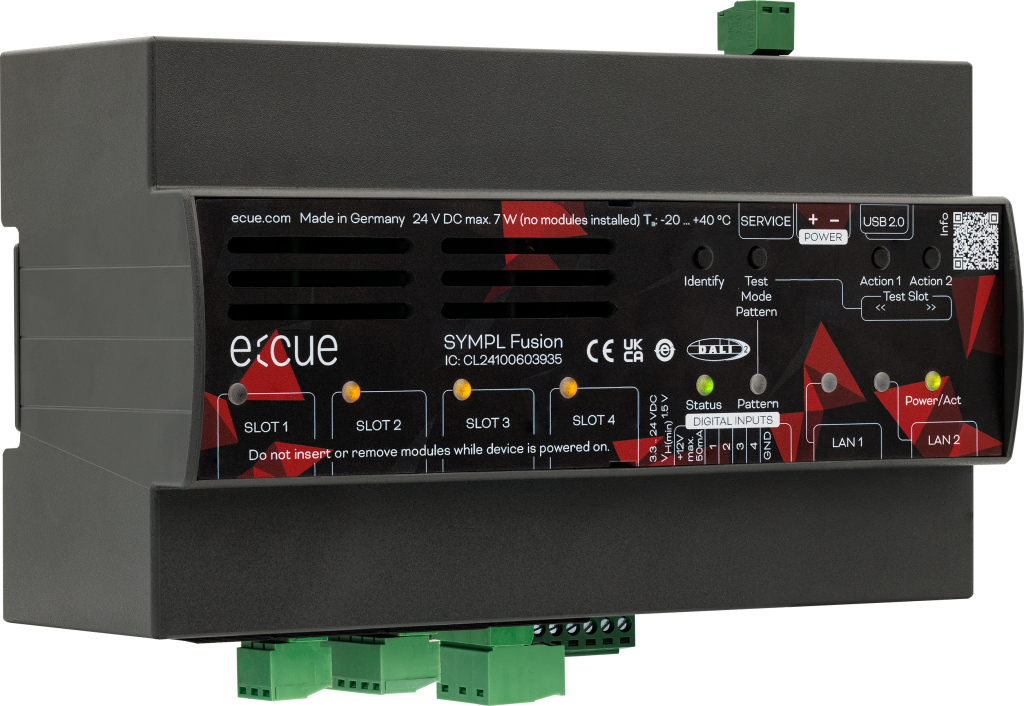
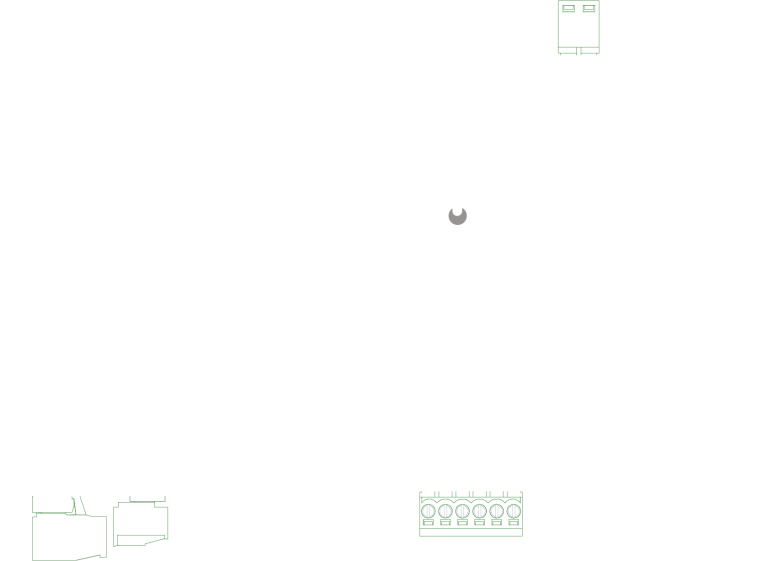
24 V DC.
Vcc–, Vcc+ left to right.
Power supply cable length ≤ 2 m.
2 x USB 2.0 Type A.
4 x Slot for SYMPL Fusion module.
Slot# 1, 2, 3, 4 left to right.
3.3 … 24 V DC, 1, 2, 3, 4, Earth left to right.
The input voltage range for the digital inputs is 3.3 to 24 V DC (input current 2 mA @ 5 V DC, 6 mA @ 12 V DC, 12 mA @ 24 V DC).
Digital inputs cable length ≤ 10 m.
2 x e:net (Ethernet), RJ45, CAT5.
Ethernet cable length ≤ 70 m.
The maximum amount of devices in a daisy chain is 7.
| Dimensions (W x H x D) | 160 x 90 x 60 mm / 6.3 x 3.54 x 2.36 in (without fastening clip) | ||||||||
| Weight | 250 g / 0.55 lb | ||||||||
| Power Supply Input | 24 V DC on terminal plug, wire gauge: 0.2 … 1.3 mm² | ||||||||
| Power Consumption |
Max. 30 W @ 4 x DALI-2 modules @ full load 7 W @ no modules |
||||||||
| Operating Temperature | -20 … 40 °C / -4 … 104 °F | ||||||||
| Storage Temperature | -20 … 70 °C / -4 … 158 °F | ||||||||
| Operating/Storage Hum. | 0 … 80% non-condensing | ||||||||
| Cooling | Fanless, convection | ||||||||
| Protection Class | IP20 | ||||||||
| Electrical Safety | SELV | ||||||||
| Housing Material | Self extinguishing blend PC/ABS | ||||||||
| Mounting | on 35 mm DIN rails (EN 60715) | ||||||||
| Certification | CE, ETL (Conforms to ANSI/UL Std. 62368-1; Certified to CSA Std. C22.2 NO. 62368-1) | ||||||||
| Output Interfaces |
4 x Modular slot card, types: Available Soon: |
||||||||
| Input Interfaces |
4 x Digital input
12 V source: max. output current |
||||||||
| System Interfaces | 2 x e:net / Ethernet, 10/100/1000 Mbit/s, RJ45, CAT shielded 2 x USB 2.0 Type A 1 x Service port (micro-USB) |
||||||||
| User Interfaces | LEDs for Ethernet activity, device status, test pattern, power; 2 x Freely assignable versatile buttons DMX & DALI test mode accessible with device button 1 x LED per slot card |

| IC | CL24100604035 |
| Weight | 18 g / 0.04 lb |
| Power Supply Input | from SYMPL Fusion base device, isolated PSU |
| Operating Temperature | -20 … 40 °C / -4 … 104 °F |
| Storage Temperature | -20 … 70 °C / -4 … 158 °F |
| Operating/Storage Hum. | 0 … 80% non-condensing |
| Certification | DALI-2, CE, UKCA, ETL (Conforms to ANSI/UL Std. 62368-1; Certified to CSA Std. C22.2 NO. 62368-1) |
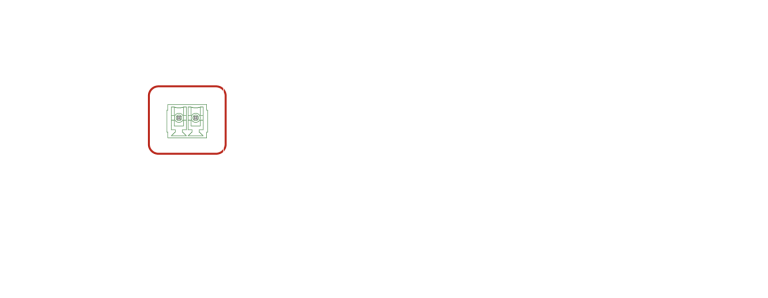
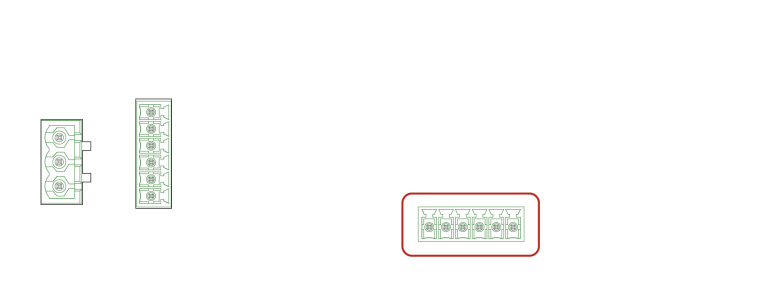
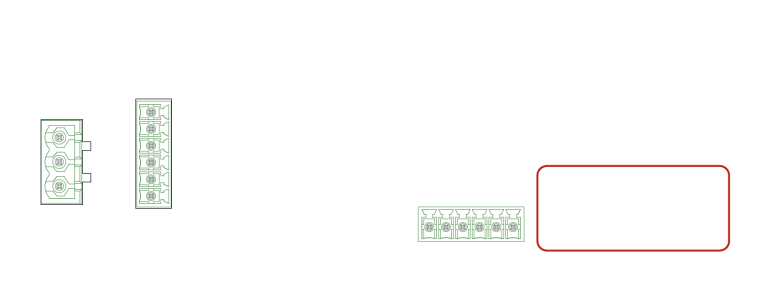
| Output Interfaces | 1 x DALI line 3-pin terminal plug max. supply current = 250 mA guaranteed supply current = 220 mA wire gauge: 0.5 … 2.5 mm² conformal to IEC 62386-101, IEC 62386-103 |
| IC |
1 Port.: CL24100604135 2 Ports: CL24100604235 |
| Weight | 14 g / 0.03 lb |
| Power Supply Input | from SYMPL Fusion base device |
| Operating Temperature | -20 … 40 °C / -4 … 104 °F |
| Storage Temperature | -20 … 70 °C / -4 … 158 °F |
| Operating/Storage Hum. | 0 … 80% non-condensing |
| Certification | CE, UKCA, ETL (Conforms to ANSI/UL Std. 62368-1; Certified to CSA Std. C22.2 NO. 62368-1) |
| Output Interfaces | 1 x DMX512/RDM or 2 x DMX512/RDM 3-pin terminal plug wire gauge: 0.3 … 1.3 mm² |
! Do not insert or remove modules while the device is powered on!
1. Power off the SYMPL Fusion.
2. Loosen the screw of the cover.
3. Remove the cover: Because the cover is hooked at the top to the base device, undo the cover at the bottom first and rotate/ fold it upwards to loosen the hooked cover.
1. Power off the SYMPL Fusion.
2. Hold the module by the plug in your hand with the bare side to the left.
3. Insert the module into the base device using the guide rail in the base device. Keep the module upright.
4. Press the module lightly into the housing so that the module snaps into place at the back.
5. Hook the module’s bezel into the top side of the slot frame and fold it downwards over the module’s plug. The connector has to be detached from the plug for this step.
6. Fasten the bezel with a screw.
7. Connect all wires to the connector.
8. Attach the connector to the plug.
1. Power off the SYMPL Fusion.
2. Detach the connector from the plug.
3. Unfasten the screw.
4. Remove the bezel: Because the bezel is hooked at the top to the base device, undo the bezel at the bottom first and rotate/ fold it upwards to loosen the hooked bezel.
5. Pull out the module in an upright position. Tip: Attach the connector again to the plug to get a better grip on the module.
1. Power off the SYMPL Fusion.
2. Hook the cover into the top side of the slot frame and fold it downwards.
3. Fasten the cover with a screw.
For details (wiring, configuration, LEDs behavior, button functions, testing) about the different module types, see their respective product information.
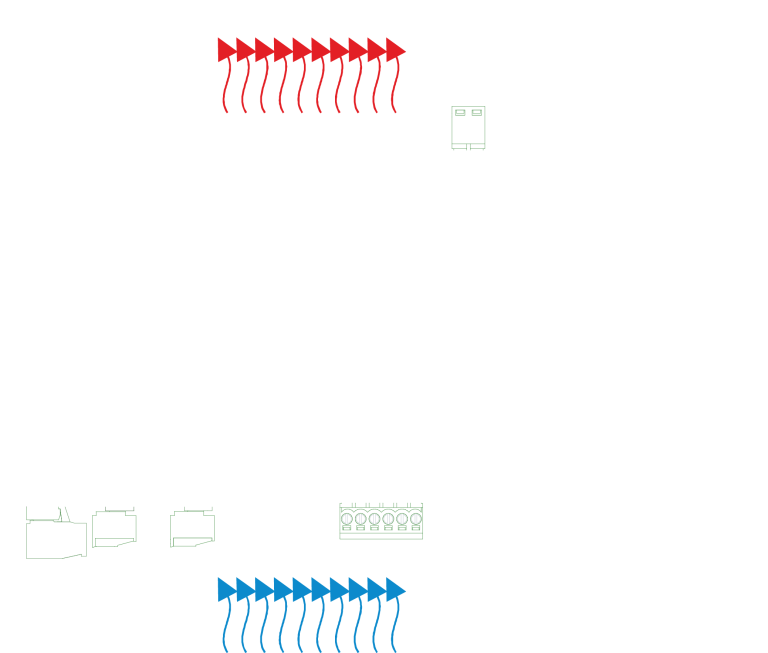
The device must be installed onto a 35mm DIN rail so that air can flow through the device. Do not place waste heat generating devices below the SYMPL FUSION Base Device.
A minimum clearance of 30 mm above and below the device is required, in order to ensure adequate ventilation.
Installation position: Terminals on top and bottom.